
ONE WORKSPACE. EVERY POSSIBILITY.

A new perspective, in one step.

Remove an image background and review the result before exporting.

Make room for your next image.

Upload, paste or take a photo · 8 MB maximum

1 credit
1 guest credits

Remove an image background and keep a transparent PNG

Remove the background from a product photo or other image. Preview the cutout and download it as a transparent PNG.

How to use this tool

  1. Add your image. Upload a JPG, PNG, or WebP up to 8 MB. You can also paste an image or take a photo.
  2. Run the background remover. The tool separates the main subject from the background and returns a transparent PNG.
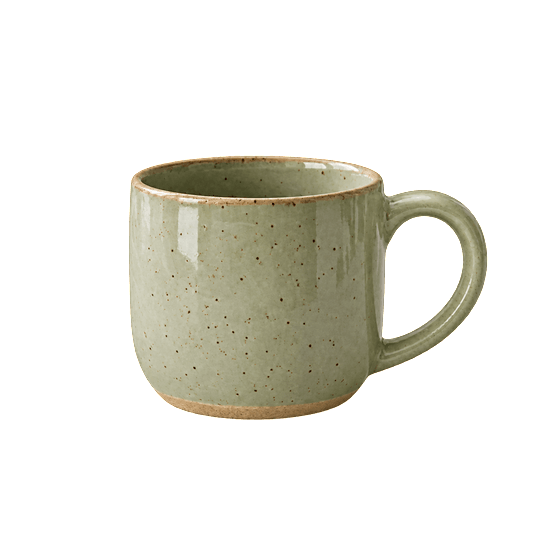
  3. Review the outline and export. Zoom in on fine edges and openings, such as the inside of a mug handle. Choose PNG in Export to keep the transparency.
Prepared example

Original product photo

Sage ceramic mug on a linen-covered table

A product photo with the table and surrounding scene still visible.

Transparent PNG cutout

Sage ceramic mug isolated on a transparent background

The checkerboard previews the transparent areas around the mug.

Download example PNG

Frequently asked questions

How do I remove the background from a product photo?

Start with a clear photo where the product stands out from the scene. After processing, check the edges and small openings before placing the cutout on a new background.

Which export format keeps the background transparent?

Choose PNG when you need transparency for a product listing, presentation, or design. JPG exports use a solid white background.

Back to the tool